CamScanner
  • Tools
    Scan
    • Scan Documents
    • Scan IDs
    • Scan Books
    • Scan Test Papers
    • Capture Whiteboards
    • Capture Slides
    • Image to Text
    Convert PDF
    • PDF to Word
    • Word to PDF
    • PDF to Excel
    • Excel to PDF
    • PDF to PPT
    • PPT to PDF
    • PDF to JPG
    • JPG to PDF
    Edit PDF
    • Merge PDF
    • Split PDF
    • Organize PDF
    • Rotate PDF Pages
    • Delete PDF Pages
    • Add Watermark
    • Protect PDF
    • Sign PDF
    App-Only
    • MeasureMeasure distances with your phone.
    • Ask AIAsk AI questions and get answers on any topic.
    • ScrollshotCapture full-page scrolling screenshots.
    • CountCamCount objects with your camera.
  • Premium
  • For Business
  • Download
  • Devices
  • AI Agent
  • 简体中文繁體中文EnglishBahasa IndonesiaEspañol
简体中文繁體中文EnglishBahasa IndonesiaEspañol
Web AppSign In
PDF to WordWord to PDFImage to TextPDF to ExcelExcel to PDFPDF to PPTPPT to PDFPDF to JPGJPG to PDF
Merge PDFSplit PDFOrganize PDFRotate PDF PagesDelete PDF PagesAdd WatermarkProtect PDFSign PDF

PDF to Excel Converter Online

Convert text-based and scanned PDFs into editable Excel spreadsheets (.xlsx), with rows, columns, and cell data kept in place.

CamScanner Ensures File Security

We care about privacy. Our PDF converter secures your files with 256-bit SSL Encryption, and the data you submit won't be shared with or accessed by any other parties.

PDF to Excel Online Converter

There is no need to install a program or download an app. CamScanner works online with any web-browser. All you need is a stable internet connection.

Cloud-Based Conversion Service

We have many servers in the cloud which do nothing else than converting PDF to Excel files. So, lean back and let them do the work.

Rows and Columns Stay Where They Belong

The converter reads the table structure rather than dumping everything into one column. Rows, columns, merged cells, and headers come through so you can sort and filter right away.

Scanned Tables Become Real Numbers

A photographed or scanned table is just an image, so you can't add it up. CamScanner's OCR reads the characters off the page and rebuilds them as cell values you can calculate with.

A Standard .xlsx That Opens Anywhere

Output is a plain .xlsx — it opens in Microsoft Excel, Google Sheets, Numbers, WPS, and LibreOffice. Formulas, sorting, and pivot tables all work from the moment you open it.

How to Convert PDF to Excel Online

  1. Open the CamScanner PDF to Excel converter

    Works in your browser on any device — nothing to install.

  2. Add your PDF

    Drag and drop the file, pick it from your device, or import it from your CamScanner account.

  3. Click Convert

    CamScanner detects the tables and rebuilds them in spreadsheet format.

  4. Download your Excel file

    Save the .xlsx to your device and start working with the data.

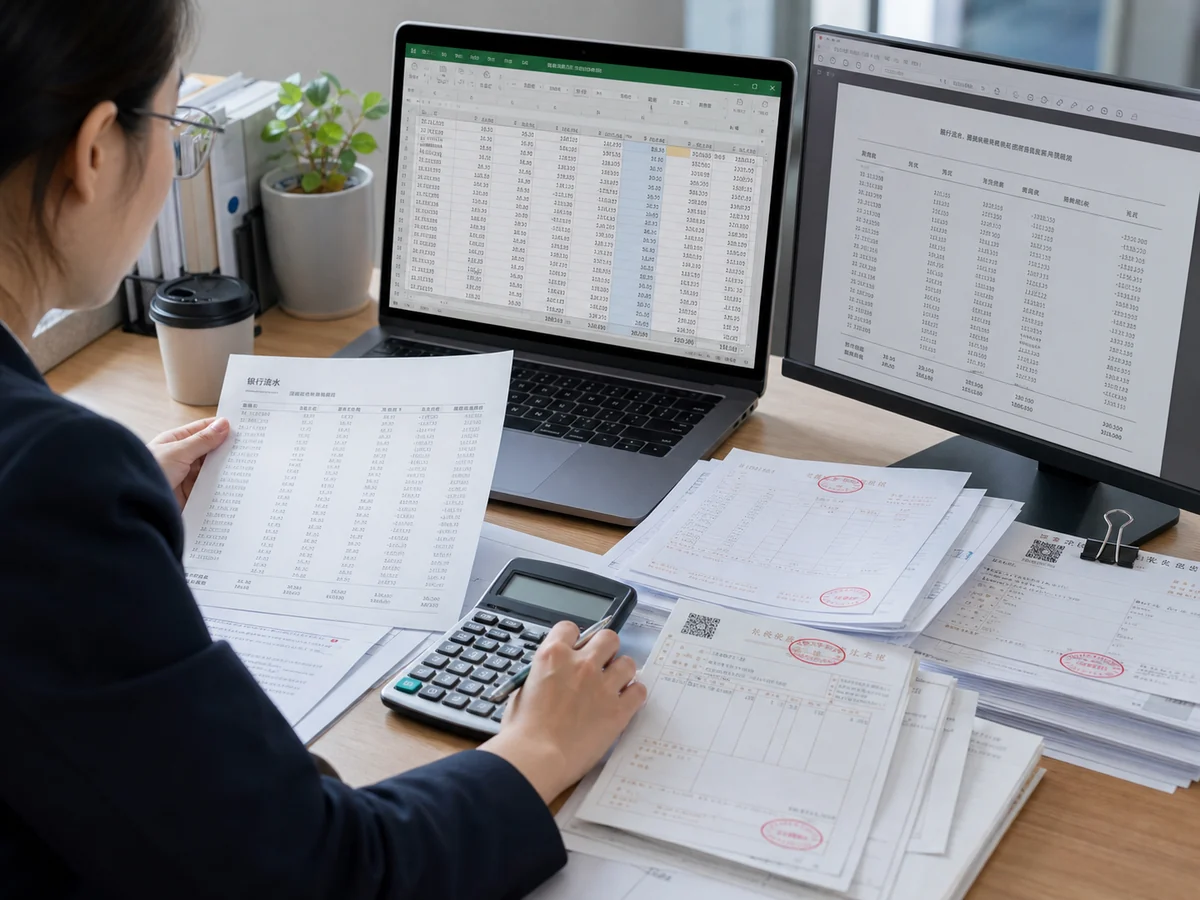
Convert Reports to Excel and Verify Formulas in One Step

Bank statements, financial reports, and audit data stuck inside a PDF, leaving you to retype everything off the screen? Use CamScanner to convert PDF tables into Excel with the row-and-column structure fully preserved, so the moment you import you can apply formulas, build pivot tables, and reconcile accounts. No more cell-by-cell entry at month-end close.
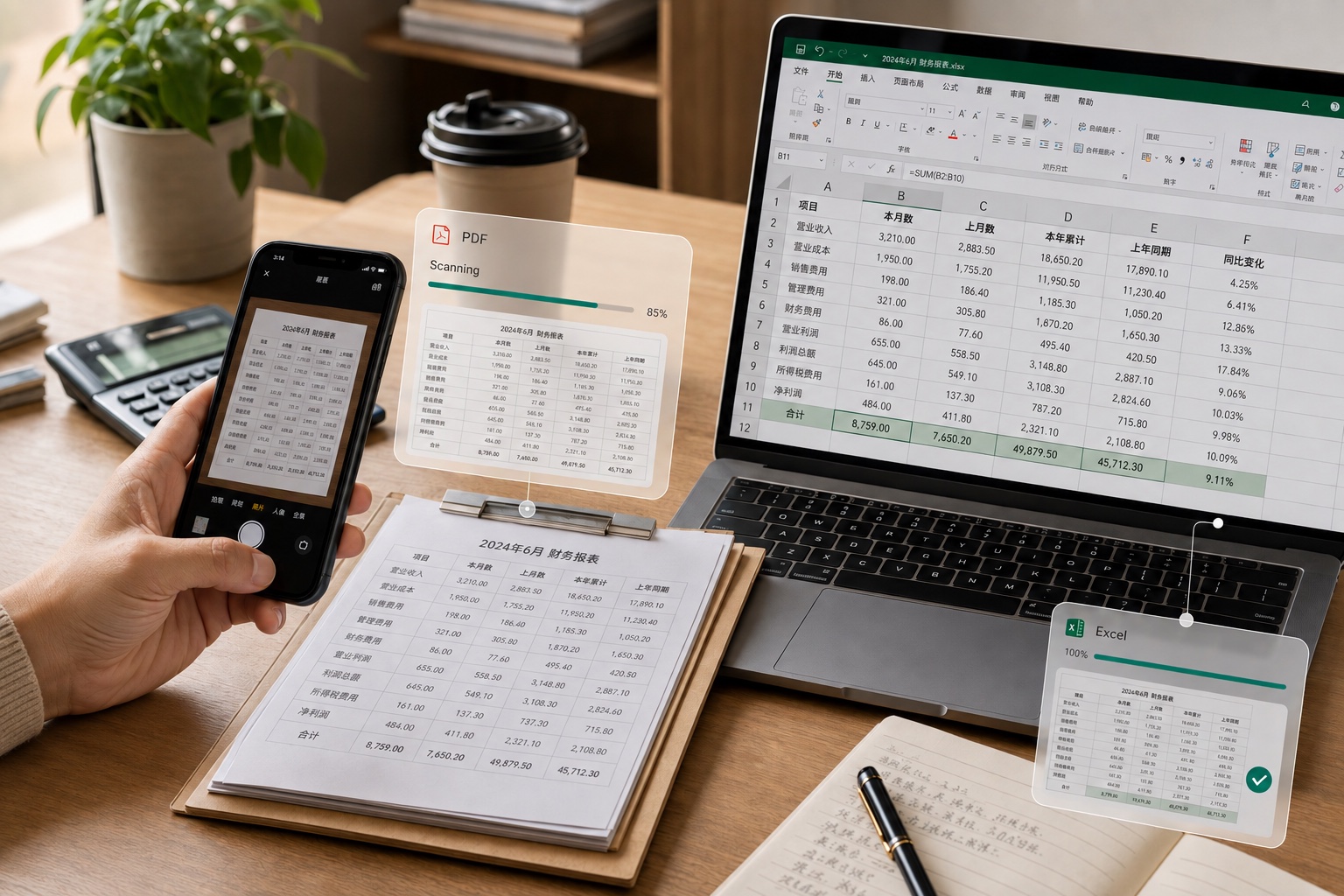
Convert Reports to Excel and Verify Formulas in One Step

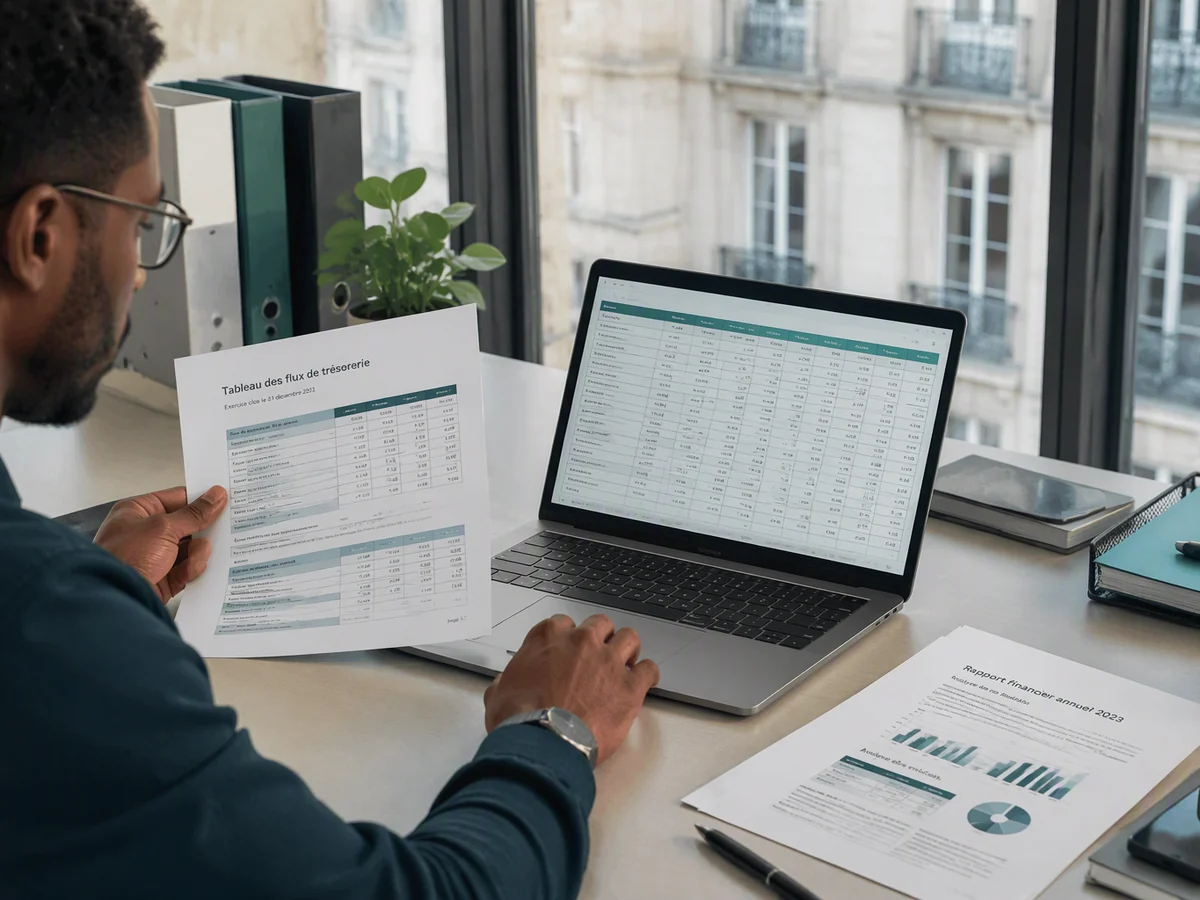
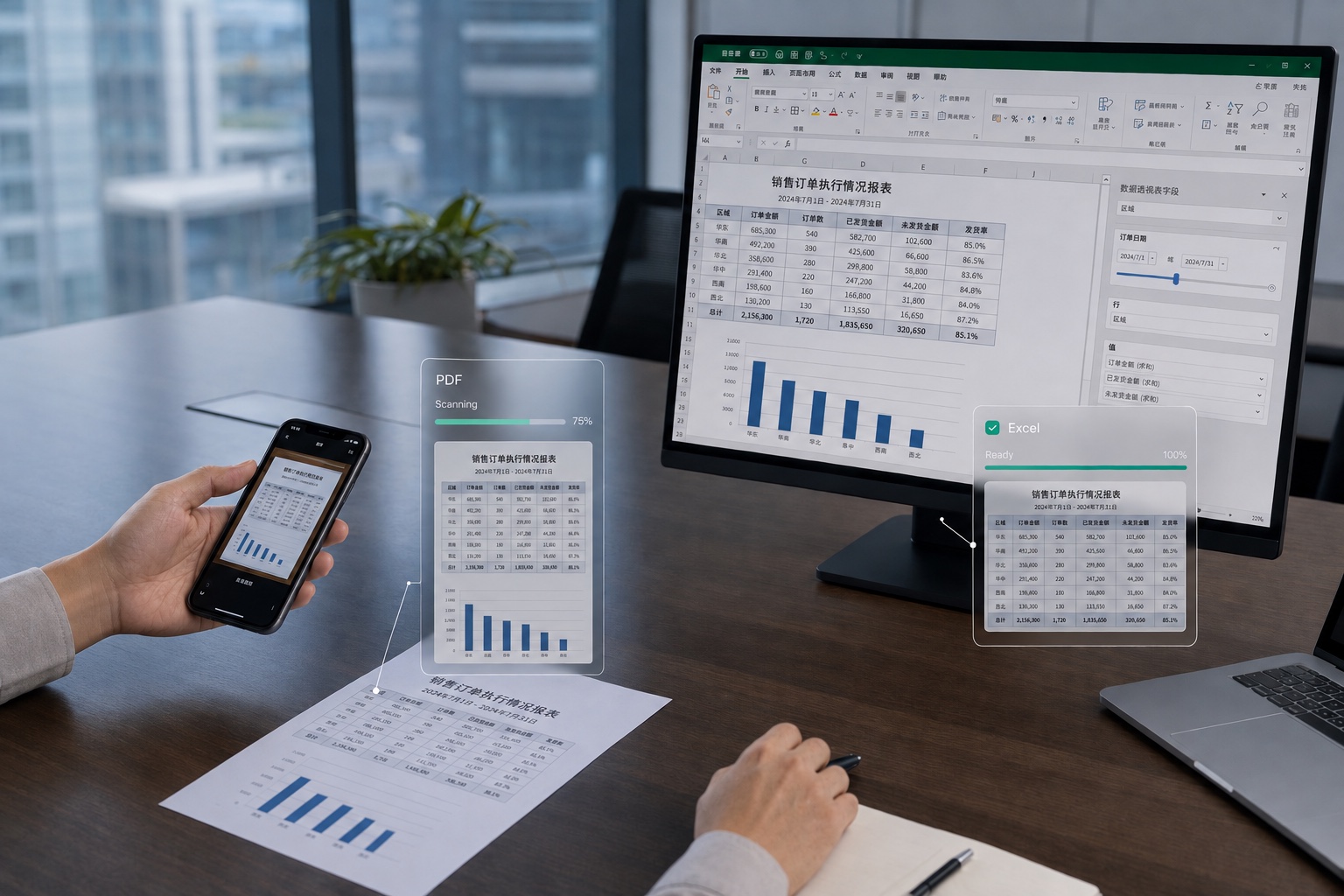
Convert Orders and Sales Data to Excel for Flexible Filtering and Analysis

Want to review sales orders and performance reports that only come as PDFs, but can't filter or sort them? Once you convert them to Excel with CamScanner, the data is fully filterable and calculable. Build charts to spot trends on the fly, and your business analysis and monthly reviews become clear at a glance, so every decision is backed by data.

Convert Orders and Sales Data to Excel for Flexible Filtering and Analysis

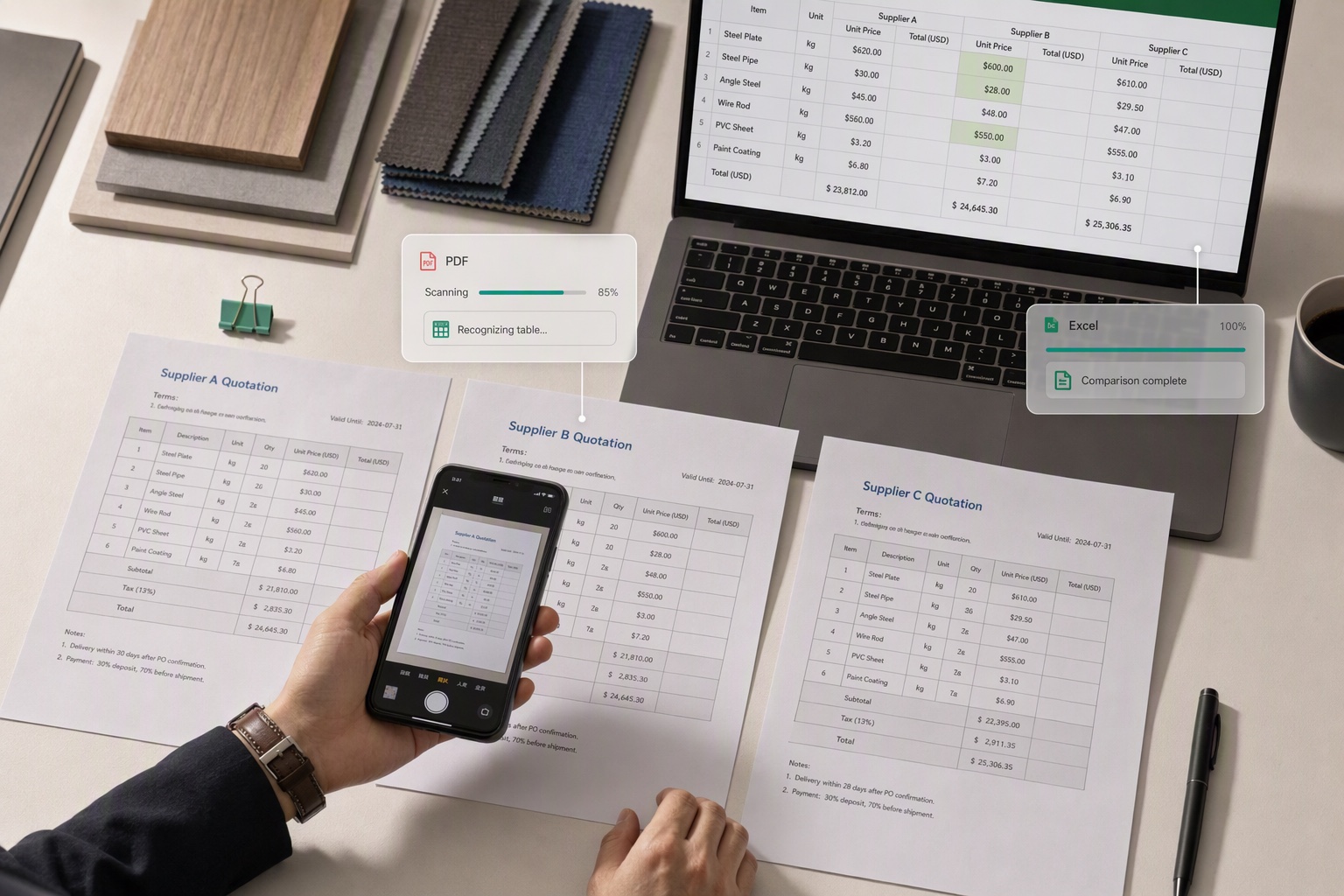
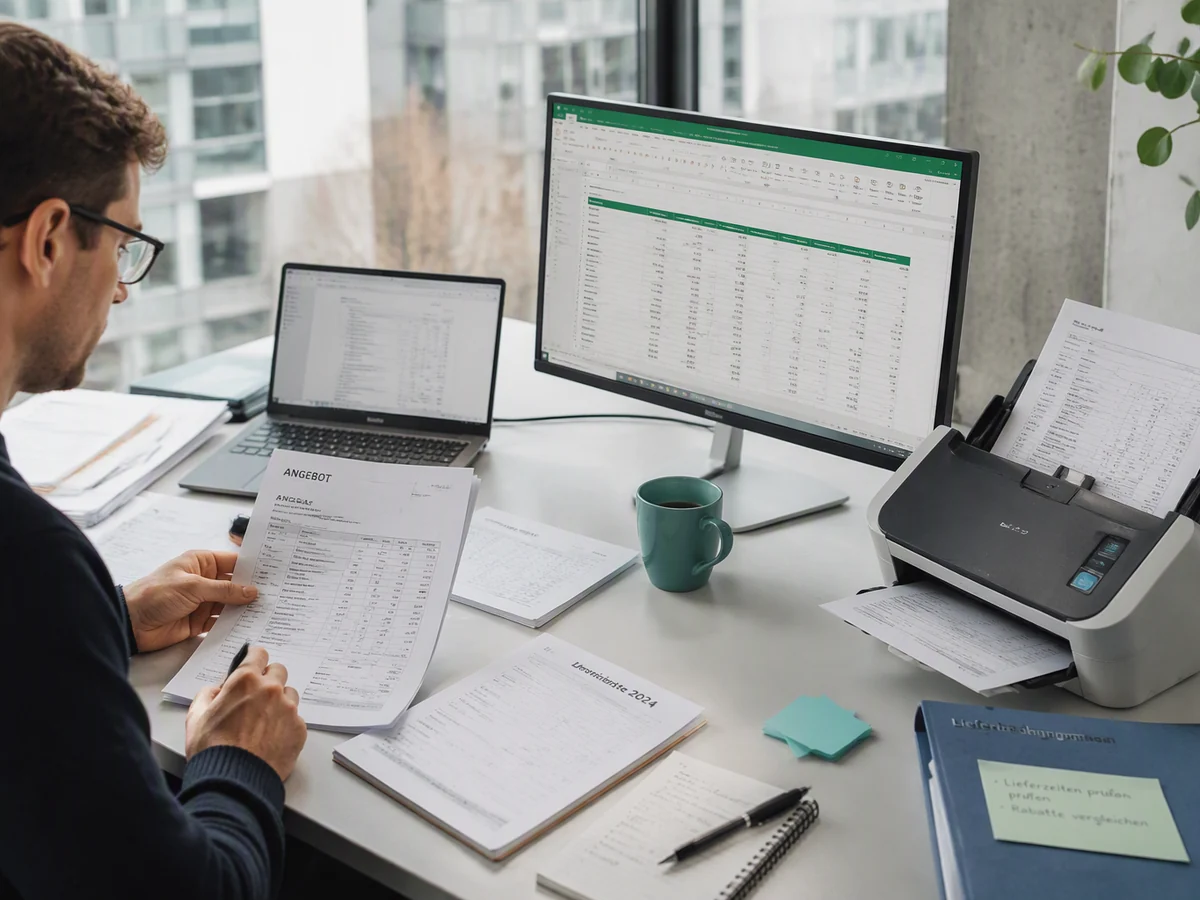
Convert Price Lists to Excel for Easier Repricing and Verification

Need to reprice or check stock against PDF quotes, product lists, and shipping documents from suppliers? Convert them to Excel in one click with CamScanner to edit prices in bulk, verify SKUs, and recalculate numbers as you go, doubling your efficiency in procurement and inventory management.

Convert Price Lists to Excel for Easier Repricing and Verification

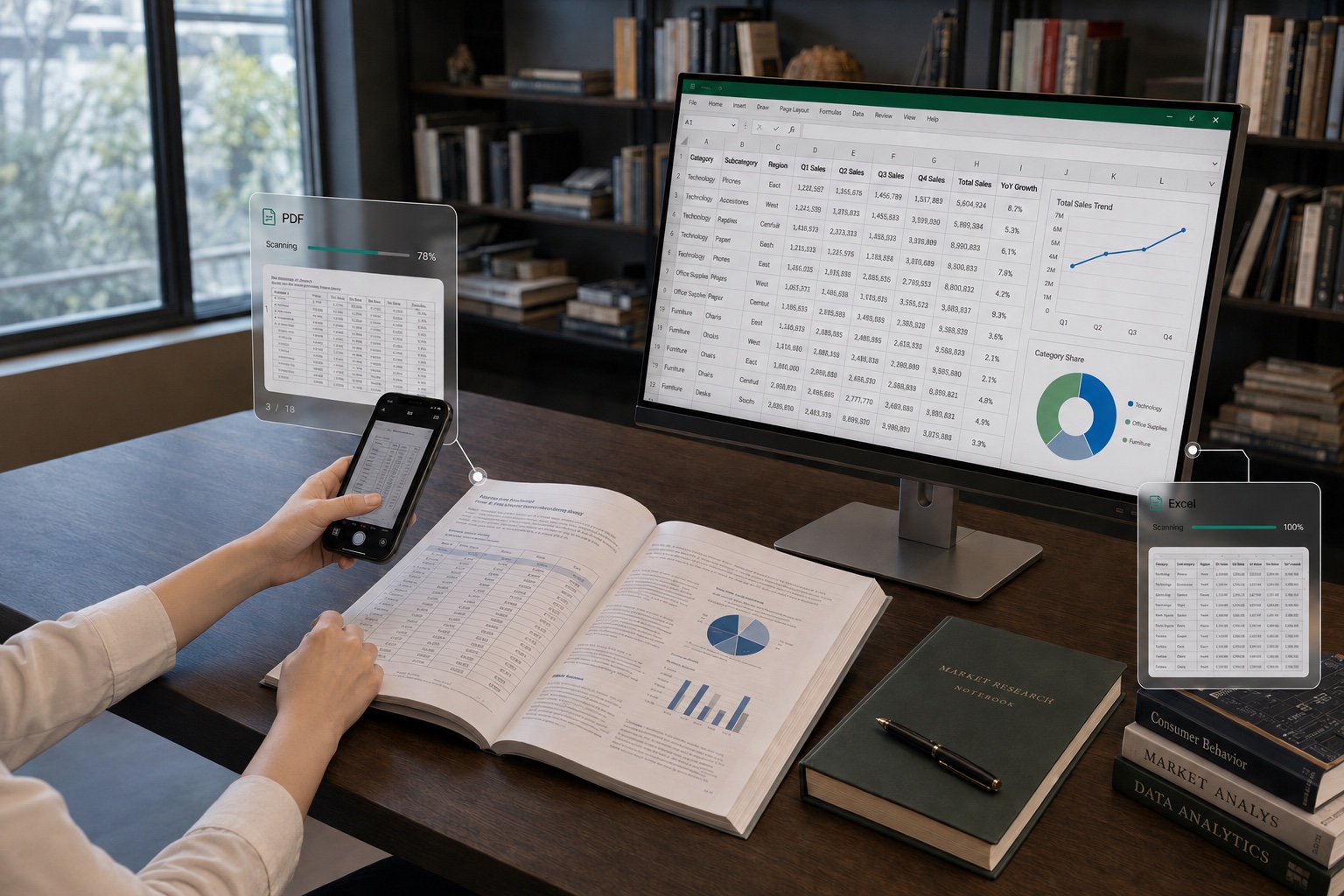
Convert Report Data to Excel for Reanalysis Without Retyping

Want to reanalyze tables buried in PDF reports, survey results, and industry data? Extract them to Excel with CamScanner, and the numbers become editable and calculable, making follow-up analysis, modeling, and citation effortless, and saving you hours of data entry when you're doing research or writing reports.

Convert Report Data to Excel for Reanalysis Without Retyping

What users say about CamScanner PDF to Excel

Camila Reyes

Accountant

I handle invoices, bank statements, and financial reports every day. I used to enter the data from PDFs into Excel item by item, which was slow and error-prone. Now I convert them to Excel with CamScanner, which recognizes the table's rows, columns, and amounts. After converting, I can add formulas and total things up, so checking and organizing financial data is far more efficient.

Alicia Carter

Data Analyst

A lot of the data in industry reports lives in static PDF tables that I have to turn into an editable format before I can analyze it. After converting to Excel with CamScanner, I can keep filtering, calculating, and adjusting the data, and it's easy to use for modeling and visualization. Skipping the manual entry and cleanup lets me reach conclusions much faster.

Rizal Hamzah

Procurement Specialist

I regularly deal with supplier quotes, purchase orders, and inventory sheets, but the data in a PDF can't be edited directly. After converting to Excel with CamScanner, I can update prices in bulk, verify product codes, and calculate quantities. When I'm juggling multiple quotes and inventory records, it cuts down on repetitive entry and makes price comparison and cross-checking far more efficient.

FAQ

Can I convert PDF to Excel for free?

Yes. You can convert PDF to Excel in your browser without installing anything.

Can I convert scanned PDFs to Excel?

Yes. A scanned table is an image of numbers, not numbers you can calculate with. CamScanner runs OCR to read the characters and rebuild them as real cell values. Clear, evenly lit scans convert best. Faint print and handwritten figures may need a quick check against the original.

Will my table structure be preserved?

Yes, in most cases. Rows, columns, merged cells, and header rows are detected and rebuilt rather than flattened into a single column. Tables that run across several pages, or ones drawn without visible borders, may need adjusting. Check the numbers against the source before building formulas on them.

Can I convert PDF to other Office formats?

Yes. CamScanner also converts PDF to Word and PDF to PPT, and handles Word, Excel, and PowerPoint files back to PDF.

Can I convert PDF to Excel on Mac or mobile?

Yes. The converter runs in any browser on macOS, Windows, Linux, iOS, and Android. No installation needed. You can also use the CamScanner app for iOS and Android.

Is my data secure when converting PDF to Excel?

Yes. Files are encrypted in transit and never shared with third parties. CamScanner is certified to ISO/IEC 27001, ISO/IEC 27701, and ISO/IEC 20000.

What if my PDF table has no borders?

The converter reads alignment and spacing to work out where the columns fall, so borderless tables usually still come through. Dense financial layouts are the hardest case and may need a little cleanup after conversion.

CamScanner on the Web

Use PDF to Excel directly in your browser, with no installation.

CamScanner Mobile App

Scan the QR code to download the app, and capture with enhancement in one step.

QR code to download CamScanner
Terms of Service|Privacy Policy|Security & Compliance|AI Agent|FAQ|Blog
Follow us
© 2026 INTSIG. All rights reserved.
CamScanner

Cookies Settings

These cookies are essential in order to enable you to move around the website and use its features. Without these cookies services you have asked for cannot be provided.

We'd like to set Google Analytics or Baidu Analytics cookies to help us to improve our website by collecting and reporting information on how you use it. The cookies collect information in a way that does not directly anyone. For more information on how these cookies work, please see our 'Cookies page'.